|
<< Click to Display Table of Contents >> Layout Tab |
  
|
|
<< Click to Display Table of Contents >> Layout Tab |
|
This tab can be used to specify the layout for the tab.
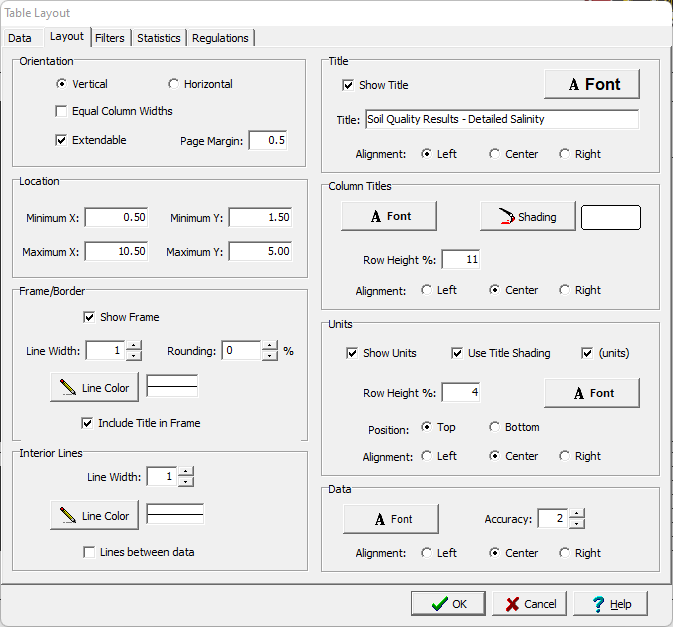
The following information can be specified on this tab:
Orientation
Orientation: The table can either be oriented vertically or horizontally. If oriented vertically the data will be organized into columns and if oriented horizontally the data will be organized into rows.
Equal Column Widths: For vertically oriented tables the column widths can be set equal using the check box.
Extendable: If the table is oriented vertically, check this box to make the table extendable. This will extend the table on to additional pages to accommodate the data.
Page Margin: If the table is extendable this is the page margin at the top and bottom of any additional pages that are added.
Location
Minimum X: This is used to specify the left boundary of the table on the template in the same units as the template page units (inches or millimeters).
Minimum Y: This is used to specify the top boundary of the table on the template in the same units as the template page units (inches or millimeters).
Maximum X: This is used to specify the right boundary of the table on the template in the same units as the template page units (inches or millimeters).
Maximum Y: This is used to specify the bottom boundary of the table on the template in the same units as the template page units (inches or millimeters).
Frame/Border
Show Frame: This is used to specify whether to draw a frame around the table.
Line Width: If a frame is being drawn, this is the line width.
Rounding: If a frame is being drawn, this is the rounding at the corners.
Line Color: If a frame is being drawn, this is the line color.
Include Title in Frame: The title of the table can optionally be included inside or above the frame.
Interior Lines
Line Width: This is used to specify the line width of the interior lines.
Line Color: This is used to specify the color of the interior lines.
Lines between data: If the lines between data box is checked, lines will be drawn between the data columns or rows. If the box is not checked, then only a line between the legend titles and data will be drawn.
Title
Show Title: Check to show the title above the table.
Font: This is used to specify the font for the title.
Title: This is the title for the table.
Alignment: This is the alignment of the title.
Column or Row Titles
Font: This is used to specify the font for the column or row titles.
Shading: This is used to specify the background shading of the column or row titles.
Row Height/Column Width: If the table is oriented vertically the row height of the titles can be specified as a percentage of the total height of the table. If the table is oriented horizontally the column width of the titles can be specified as a percentage of the total width of the table.
Alignment: This is used to select the alignment of the titles.
Units
Show Units: The units for the data can be shown in the table. If the units are being shown then the following can be specified:
Use Title Shading: The background of the units can be shaded the same as the titles.
(units): Check this box to display brackets around the units.
Row Height %: If the table is oriented vertically the row height of the units can be specified as a percentage of the total height of the table.
Column Width %: If the table is oriented horizontally the column width of the units can be specified as a percentage of the total width of the table.
Position: If the table is oriented vertically the units can either be at the top of the data or bottom of the data. If the table is oriented horizontally the units can either be on the left or right of the data.
Alignment: This is used to select the horizontal alignment of the units.
Data
Font: This is used to select the font for the data.
Accuracy: This is used to specify the default accuracy (number of decimal points) of the data.
Alignment: This is used to select the alignment of the data.